
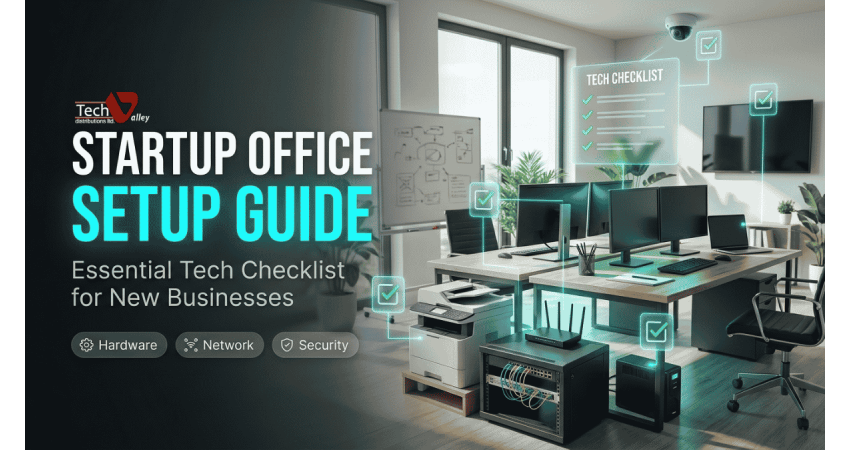
Setting Up an IT Office for Your Startup in Bangladesh: Essential Equipment Checklist
This guide walks Bangladeshi startup founders and office managers through every layer of an IT office, from computers and networking to security and backup. If you prefer to see options in one place, a reliable office equipment supplier in Bangladesh can help you compare everything side by side.
Start With Team Size and Roles
Do not begin with products. Begin with people. List every role in your team, what software each person uses daily, and whether they work from the office, from home, or both. A finance executive who lives in spreadsheets and accounting software needs a very different machine from a video editor.
Plan for the team you will have in six months, not only today.
| Stage | Typical Setup | Main Priority |
|---|---|---|
| Founding team (2 to 5 people) | Laptops, one router, one multifunction printer | Flexibility and low upfront cost |
| Growing team (6 to 20 people) | Mix of desktops and laptops, switch, access points, small meeting room | Reliable network and power |
| Established team (20 plus people) | Structured cabling, backup storage, CCTV, access control | Security, records and standardisation |
Choose the Right Computers for Each Role
The biggest question is desktop or laptop. Desktops give more performance for the money, are easier to upgrade and repair, and are harder to steal. Laptops suit people who attend client meetings, work remotely or share desks.
When you are ready to compare, browse a range of branded desktop computers for office use for fixed workstations and a selection of business laptops for startup teams for mobile staff.
| Role | What Matters Most | General Guidance |
|---|---|---|
| Admin and HR | Reliability, multitasking | A solid mainstream processor, enough memory for many browser tabs, and an SSD |
| Accounts | Speed with spreadsheets, large screen | A responsive processor, SSD storage and a full keyboard with a number pad |
| Design and video | Graphics, memory, colour-accurate display | A dedicated graphics card, generous memory and fast storage |
| Development | Memory, storage, multitasking | A strong multi-core processor, plenty of memory and an SSD for builds and virtual machines |
Pro Tip
Always choose an SSD over a traditional hard drive for the system disk. It is the single upgrade that makes an ordinary office computer feel fast every day.
If a standard model does not fit, a custom PC build balances budget and performance for one role. Free pre-sale consultation is available.
Monitors and Everyday Peripherals
A 22 to 27 inch IPS display suits most staff, and developers, designers and accountants often benefit from a second screen. Explore office monitors for daily work with height adjustment and the right ports.
Do not forget the small items that people touch all day: keyboards, mice, webcams, headsets and docking stations. A good selection of computer accessories for office teams improves comfort.
Build a Network That Does Not Fail
The basic building blocks are a router, a switch, access points and proper cabling.
- Router: the gateway to the internet, handling security, routing and often basic user control. Pick a business-grade model once your team grows beyond a handful of people.
- Switch: connects wired devices such as desktops, printers and IP cameras. Buy more ports than you need today.
- Access points: spread good Wi-Fi coverage across rooms and floors, rather than relying on one home-style router in a corner.
- Cabling: run quality LAN cable to every desk and to the meeting room, and label both ends. Wired connections are steadier than Wi-Fi for fixed workstations.
You can compare networking equipment for small offices across switches, access points and cabling, and look at a dependable business router for office internet as the heart of the setup.
Internet redundancy matters more than most founders expect. If your business depends on cloud tools, online orders or video calls, a single connection is a single point of failure. In general terms, use two different internet providers, or a primary line with a backup, and choose a router that can switch between them.
Quick Note
Ask your installer for a simple network diagram and keep router logins in a secure place.
Protect Your Work With Power Backup
Load shedding and voltage fluctuation are real concerns in many parts of Bangladesh. Sudden power loss can corrupt files, damage hardware and stop work in the middle of a deadline. A UPS gives your computers and network gear enough time to save work and shut down safely, and good models also smooth out voltage swings.
Put your router, switch and critical workstations on backup power first. Browse UPS for office computers and network devices and match the rating to the total load, with some headroom.
Printing, Scanning and Photocopying
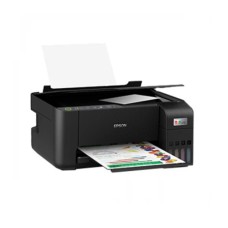
For most startups, one good multifunction machine that prints, scans and copies is enough at the beginning. Think about how many pages you print, whether you need duplex printing, and whether running cost matters more than purchase price. See the range of office printers and multifunction machines to compare options.
Retail and eCommerce businesses also need specialised devices. A receipt printer and barcode scanner speed up your POS counter, while a thermal label printer helps you prepare product labels and courier parcels quickly. Check that every device works with your billing software before you buy.
Meeting Room and Presentation Setup
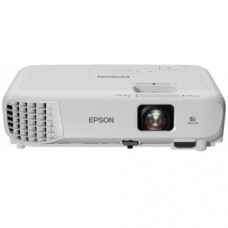
Even a small meeting room makes your company look professional. The simplest option is a display or a projector for meeting rooms and presentations with a reliable HDMI connection. As your team grows, an interactive flat panel allows touch, annotation and wireless sharing, which suits training sessions and brainstorming.
If some team members or clients join remotely, add a conference camera with a good microphone and speaker, or an IP phone for clear voice calls.
Small Room
One display or projector, a wireless presenter and a conference speaker for simple calls.
Medium Room
An interactive flat panel, a conference camera and a table microphone for hybrid meetings.
Training Room
A projector or large panel, extra power points, strong Wi-Fi coverage and room for laptops.
Security: Physical and Digital
Security protects both your equipment and your information. On the physical side, CCTV covering the entrance, reception and storage area discourages theft and helps resolve disputes, while access control such as card or fingerprint entry keeps sensitive rooms limited to the right people. Compare CCTV and access control systems for offices and store recordings safely.
On the digital side, use licensed software. Pirated software often carries malware. Install a trusted antivirus and software licensing solutions on every device, and keep licence keys in one register.
Backup and Storage
Computers fail, laptops get lost and mistakes happen. A good rule is to keep three copies of important data, on two different types of storage, with one copy kept away from the office. In practice that can mean a network storage device or external drive in the office, plus a cloud backup service for off-site safety.
Automate backups and test a restore at least once.
Ergonomics and Comfort
Staff who sit comfortably work better and take fewer sick days. Invest in adjustable chairs with back support, desks at a suitable height, monitors at eye level, and good lighting without glare.
Pro Tip
Place the top of each monitor at or slightly below eye level and about an arm's length away. This one adjustment reduces neck and eye strain for the whole team.
Asset Tagging and Warranty Records
As soon as equipment arrives, give each item a unique tag and record it in a simple register. Note the item, serial number, purchase date, invoice number, warranty period, assigned user and location. When something breaks, you will know immediately whether it is covered and who to contact.
Keep invoices and warranty cards in one folder. Genuine products with official brand warranty make this record far more valuable.
Budget in Phases, Not All at Once
Most startups do not need everything on day one. Buy the items that keep the business running first, then add comfort and convenience as revenue grows. Phased buying protects cash flow, and EMI can spread larger costs.
Phase 1: Essentials
Computers, router, switch, UPS and a multifunction printer so the team can work safely from day one.
Phase 2: Productivity
Second monitors, meeting room gear, better Wi-Fi coverage and backup storage as the team grows.
Phase 3: Protection
CCTV, access control, a backup internet line and full software licensing as the business matures.
Choose Your Vendor Carefully
The cheapest quote is rarely the best one. Look for a supplier that sells authorized, genuine products, offers official brand warranty, and has a local service center so repairs do not mean weeks of waiting.
For corporate and bulk orders, ask for a single consolidated quotation, matching models across the team and a named contact for after-sales support. Tech Valley serves startups and companies with delivery to all 64 districts and payment through bKash, Nagad and EMI. You can explore the full range on the Tech Valley computer and IT products store.

Phased Rollout Checklist
- Week 1: list roles, confirm headcount, set the budget and choose a vendor.
- Week 2: finalise cabling, power points, the router, switch and UPS.
- Week 3: install computers, printers and licensed software; test the network and backups.
- Week 4: set up the meeting room, security cameras and asset register, then train the team.
Frequently Asked Questions
How much should a startup spend on IT equipment?
There is no fixed figure because it depends on team size, roles and growth plans. Start with the essentials, spend more on computers and power backup than on extras, and add the rest in phases. A free consultation can help you build a realistic budget.
Should my startup buy desktops or laptops?
Choose desktops for fixed roles where performance and value matter, and laptops for people who travel, meet clients or work remotely. Many offices mix both. Keep the number of different models small to simplify support.
Do I really need a UPS for a small office?
Yes, especially where power cuts and voltage changes are common. A UPS protects your computers and network devices from sudden shutdowns and gives you time to save work.
Is it worth buying genuine products with official warranty?
Yes. Genuine products come with official brand warranty, software that updates properly and access to service centers.
Can I place a bulk or corporate order?
Yes. Tech Valley supports corporate and bulk orders with consolidated quotations, matched models and after-sales support.
How do I keep track of warranties for many devices?
Keep an asset register with serial numbers, purchase dates and warranty periods, and tag every device. Store invoices digitally too.

There are no comments for this Article.